Hypnosis Hub
By Richard Barker — The Incredible Hypnotist
Your simple step-by-step guide to getting started
Hypnosis Hub is Richard Barker's personal audio app. It works like a private streaming service — just for you. Inside you will find guided hypnosis recordings to help with sleep, confidence, anxiety, focus, and much more.
It lives on your phone like a normal app, but you do not need to download it from the App Store. You simply visit the website address and save it to your phone's home screen in seconds.
✅ No App Store needed · ✅ Free to join · ✅ Works on any iPhone or Android phone
2
Step 1 — Open the App on Your Phone
You have two ways to get to the app. Use whichever feels easier:
Option A — Type the address
Open your phone's internet browser (Safari on iPhone, Chrome on Android).
app.incrediblehypnotist.com
Type that address exactly into the bar at the top of your browser and press Go.
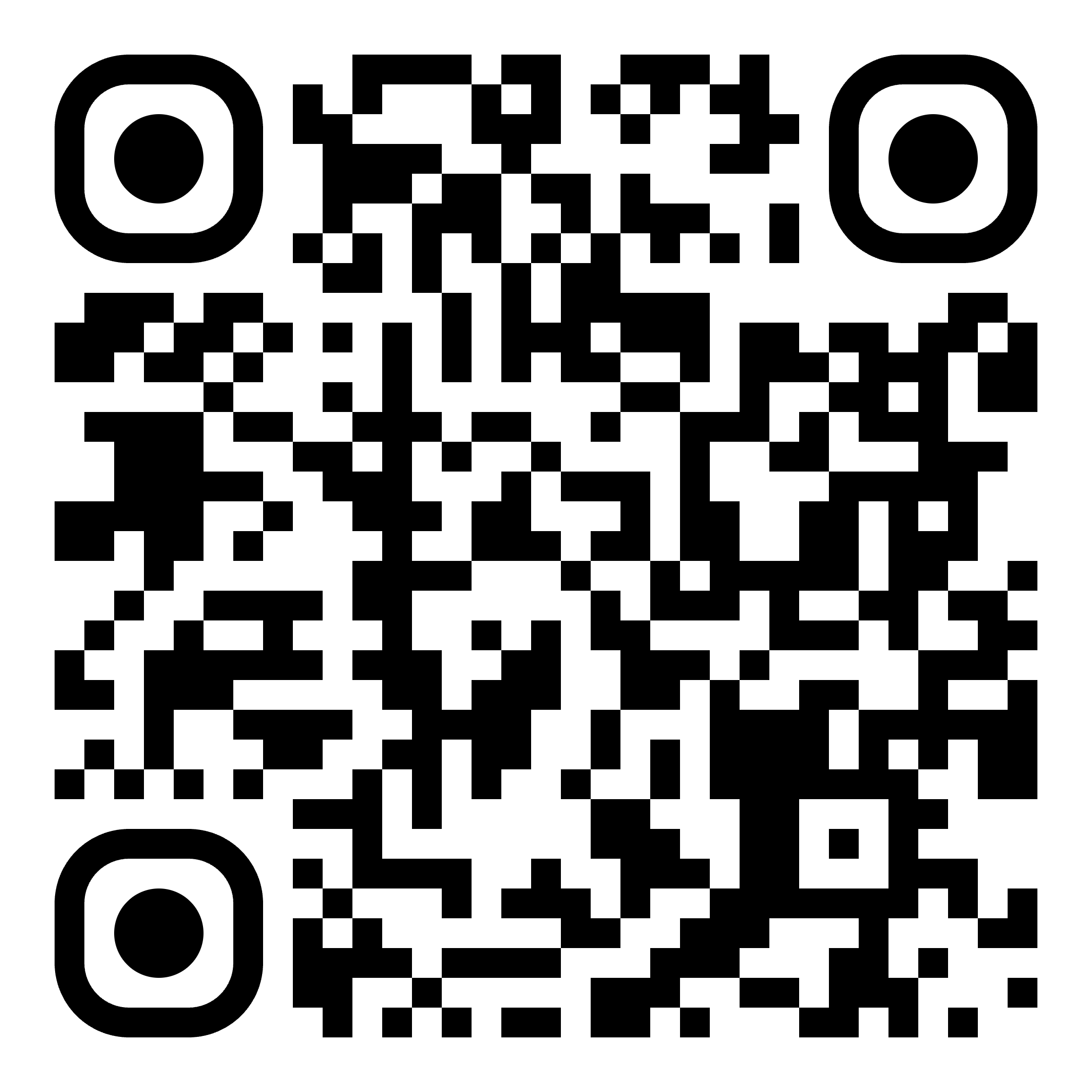
Option B — Scan the QR code
Open your phone's Camera app and point it at this square code. Tap the yellow link that appears.
3
Step 2 — Install It on Your Home Screen
Once the app is open in your browser, you can save it to your phone's home screen so it opens like a normal app with one tap — no typing needed next time.
📱 On an iPhone (Safari)
- Make sure you are using Safari (the compass icon). If you used a different browser, switch to Safari first.
- At the bottom of the screen, tap the Share button — it looks like a box with an upward arrow ↑
- Scroll down the list that appears and tap "Add to Home Screen"
- Tap "Add" in the top right corner.
- The Hypnosis Hub icon will now appear on your home screen. Tap it any time to open the app.
🤖 On an Android phone (Chrome)
- Make sure you are using Chrome (the coloured circle icon).
- Tap the three dots ⋮ in the top right corner of the screen.
- Tap "Add to Home screen" or "Install app".
- Tap "Add" or "Install" when asked to confirm.
- The Hypnosis Hub icon will now appear on your home screen.
💡 Tip: Once installed, you can listen even without Wi-Fi if you save tracks for offline use (explained in Step 5).
4
Step 3 — Create Your Free Account
You will need a free account to access your audio tracks. It only takes about one minute.
- On the home screen of the app, tap the big gold button that says "Join Free — Get Started".
- Enter your name, email address, and choose a password. Write your password down somewhere safe.
- Tap "Create Account".
- You may receive a confirmation email — open it and tap the link inside to verify your address.
- You are now logged in and can access your content.
✅ Already have an account? Tap "Log In" and enter your email and password.
5
Step 4 — Finding and Playing Your Audio Tracks
Once logged in, you will see your personal library. This is where all your recordings live.
- Tap "My Library" at the top of the screen.
- You will see your audio tracks listed. Each one has a title and a play button.
- Tap the large gold ▶ play button next to any track to start listening.
- Use the bar underneath the track title to skip forward or back — just tap where you want to go.
- To stop, tap the ❚❚ pause button.
🔄 Loop a track (great for sleeping)
Each audio player has a Repeat button (two arrows forming a circle ↺). Tap it to make the track play over and over automatically without you having to do anything. Tap it again to turn looping off.
🔒 Lock screen controls
When your screen is locked, you can still control the audio from your phone's lock screen — just like a music app. Press play, pause, or skip without unlocking your phone.
6
Step 5 — Saving Tracks to Listen Without Wi-Fi
You can save any track to your phone so you can listen even when you have no internet connection — perfect for travelling or at bedtime when you have turned your Wi-Fi off.
- Find the track you want to save.
- Tap the Download button — it looks like a downward arrow ↓ on the right side of the player.
- Wait a moment while it saves.
- When saved, the button will turn green with a tick ✓ — it is now available offline.
7
Step 6 — Sleep Mode (Black Screen for Bedtime)
If you are listening in bed, you can switch to Sleep Mode. This turns your screen completely black so no light disturbs you, while the audio keeps playing.
- Start playing any audio track.
- Tap the Moon 🌙 button on the right side of the player.
- Your screen goes black. The audio continues.
- Tap the screen once to briefly see the controls (play/pause and exit).
- Tap the X button, then tap Exit, to return to the normal screen.
8
Step 7 — Free Breathing Pacer
Before your hypnosis session, try the Breathing Pacer — a free tool that guides you through slow, calming breaths. This relaxes your body and opens your mind to make the hypnosis much more effective.
- Tap "Breathe" in the menu at the top of the screen.
- Choose a breathing pattern — we recommend 4-7-8 for sleep.
- Read the phase guide on screen, then tap the big Start button when ready.
- Breathe along with the circle — in as it expands, out as it shrinks.
- After 6 rounds, go straight to your chosen hypnosis track.
💡 4-7-8 explained: Breathe in for 4 seconds · Hold for 7 seconds · Breathe out slowly for 8 seconds. The long out-breath tells your nervous system it is safe to relax.
🎧 Headphones
For the best experience, use headphones or earbuds. The recordings are designed for stereo listening.
🔊 Volume
Set your volume to a comfortable level before you begin — not too loud, not too quiet.
📶 No Wi-Fi?
As long as you have saved a track (green tick), you can listen with no internet at all.
🔋 Keep screen on
Sleep mode keeps your screen on so the audio doesn't stop when your phone locks. This uses a little extra battery.
🌟 Morning check-in
After a sleep session, the app may ask how you slept. This is optional — just rate your night to track your progress.
🔔 Morning alarm
You can set a gentle chime alarm inside the app. Tap the bell 🔔 icon at the top of your library.
If anything is not working or you are unsure what to do, here is what to try:
- Close the app completely and reopen it.
- Make sure your phone is connected to Wi-Fi or mobile data.
- If a track won't play, tap the Download button to save it first, then try again.
- If you forget your password, tap 'Log In' then 'Forgot password?' to reset it by email.
📧 For any other help, contact Richard's team directly through the website at incrediblehypnotist.com
Richard Barker — The Incredible Hypnotist
app.incrediblehypnotist.com · incrediblehypnotist.com